CRM Module
Here you will find a step-by-step guide for the crm module at XLR.
Before going to the CRM pipeline you have to go through the "Leads".
Here is a quick video of this step:
LEAD Tutorial Video
After that step you can go forward to the CRM tab:
CRM Tutorial Video
STEP 1:
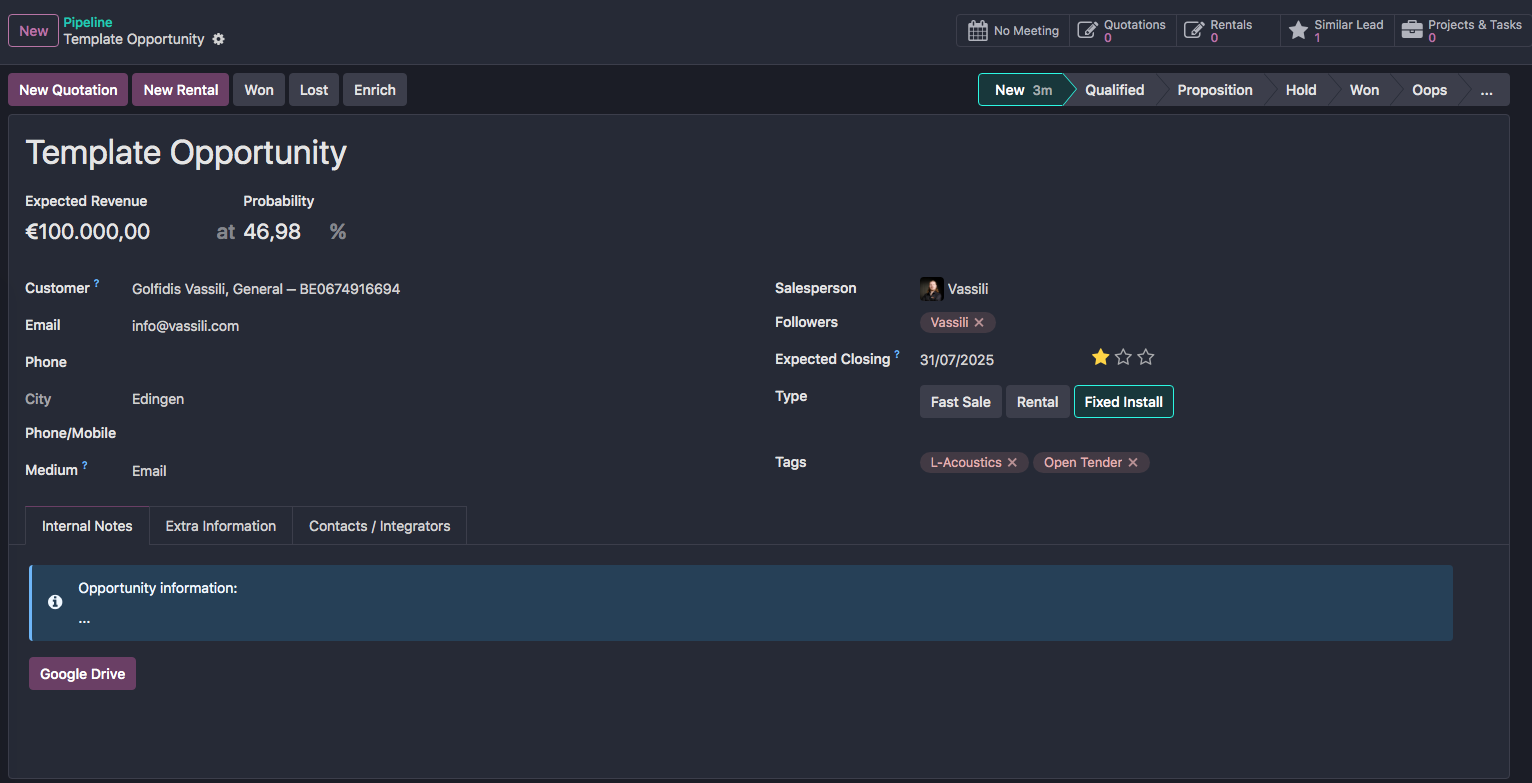
1. Create a new Opportunity by clicking on the "NEW" button.
2. Fill in all the information you have
-Expected Revenue: This indicates the revenue (VAT excl) that this opportunity will bring if won. This will be use
-Probability: This a a automacialy calculated field that calculates the chance of winning (You can put this manualy also)
-Medium: This indicates the medium that is used to create this Opportunity.
-Salesperson: this is automaticaly the Salesperson connected to the customer, but can be changed manualy.
-Expected Closing: This is the date when you think this oppertunity will be won.
-Type: this is the type of opportunity.
- Fast Sale = fast selling,not a project
- Rental = Rental company who buys something
- Fixed Install = typical projects
-Tags: here you can select tags to make it easyer to filter out you Opportunity's
-Internal Notes: Write all the information you have at the moment you create the opportunity.
STEP 2:
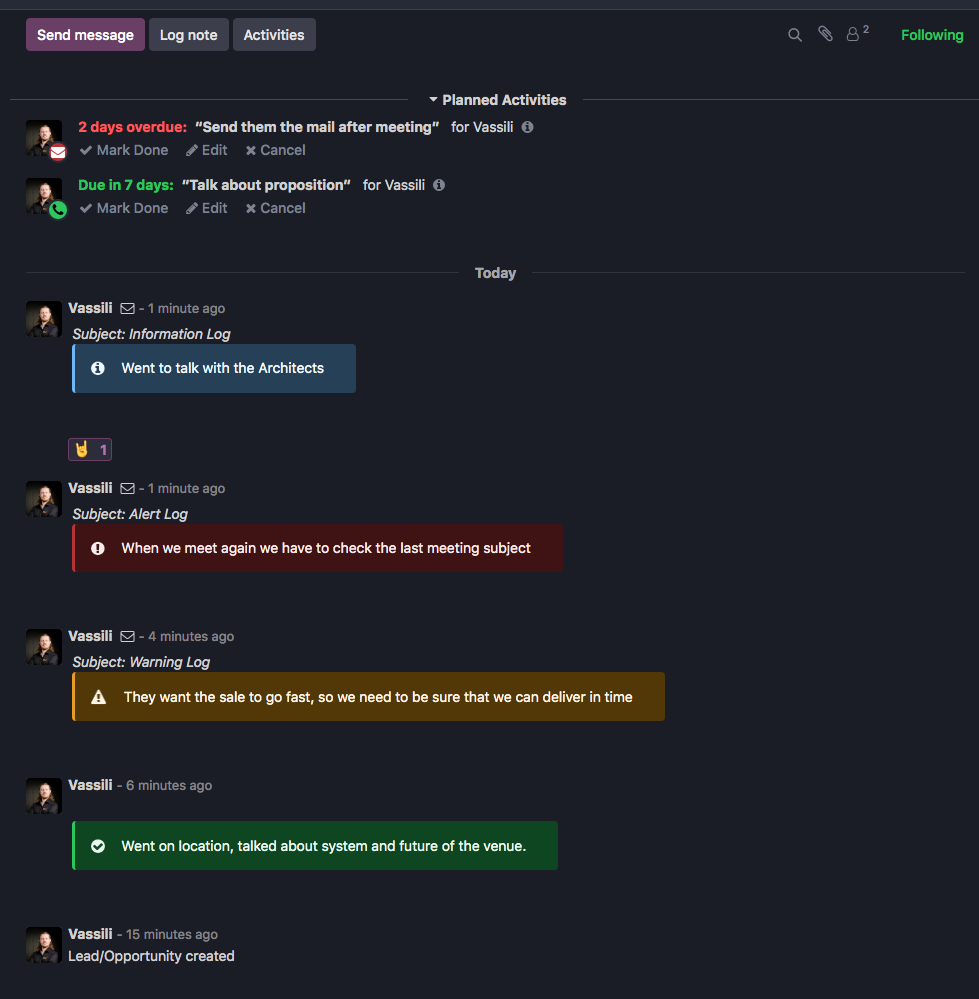
1. Take the actions you need for the opportunity to go forward
2. Fill in everything you can to help you track your opportunity, maybe use the chatter
-In the chatter you can Log internal Notes (TIP: Use the more option and select a template)
-Create activity's to remind you to do stuff
-Send a message to the customer or other people outside of XLR.
Optional Step 1:
1. Create a new Quotation or Rental
-This wil link the new Quotation with teh CRM (you can go back to your CRM by clicking on the arrow netxt to the CRM name on the Quotation
-When a Quotation is created the Opportunity will goe to 'Qualified'
-When a Quotation goes to 'Quotation Sent' the Opportunity will go to 'Proposition'
-When a Quotation goes to 'Sales Order' the Opportunity will go to 'Won'
-When a Sales Order is Canceled the Opportunity will go to 'Oops' -> after this you can take some action.


Optional Step 2:
-This meeting will be linked with the opportunity
-The followers linked to the Opportunity will be linked in the calendar event and get notified.
Optional Step 3:
-Here you will see all Leads/Opportunity's linked with the same customer
-Sometimes there are duplicate opportunity's, here you can check this.
Optional Step 4:
1. Create or link Project
-Here you can link a Tasks or projects to the Opportunity
Tips & Tricks:
-Upload all the documents directly in the chatter of the Opportunity to have them centralised.
-When a opportunity has no activity in the chatter, there will be a activity created.
-When creating a new Opportunity, you have to fill in the Probability % yourself. If not, the system will leave it at 0% and will notify you to change it when you are in later stages.