👩💼
CONTACT Module
Here you will find a step-by-step guide for the contact module at XLR.
STEP 1:
1. Create a contact by pushing on the "NEW" button
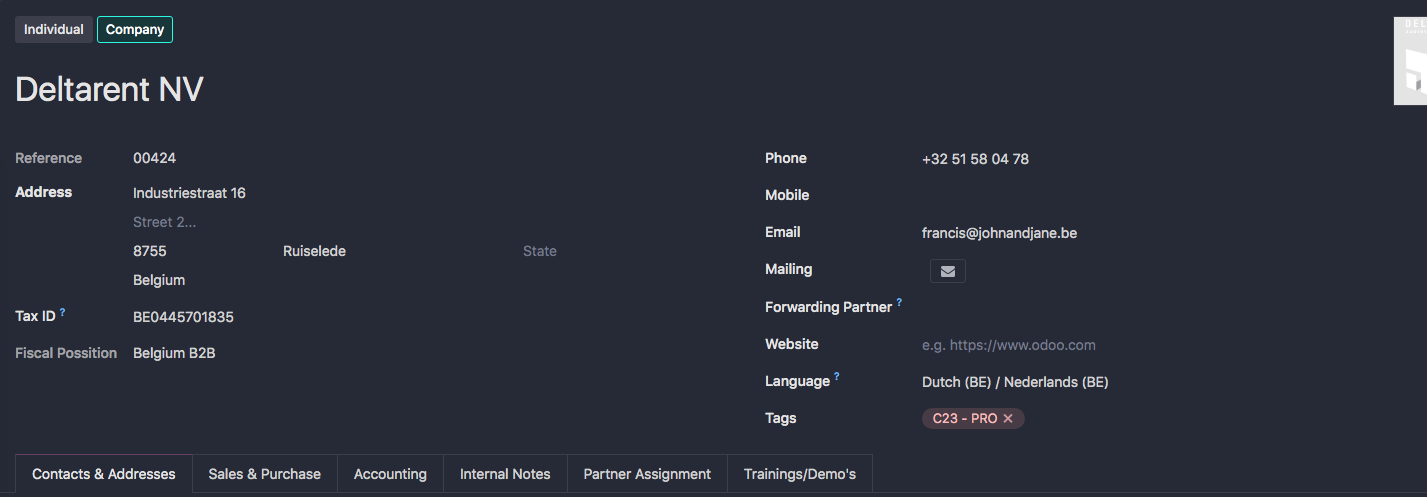
2. Fill in everythng you can
-Be sure to fill in the correct VAT number
-Check the "Mailing" if the customer has to recieve marketing mails
-Sales users can only create individual contacts
STEP 2:
2. Create subcontacts linked to the Company
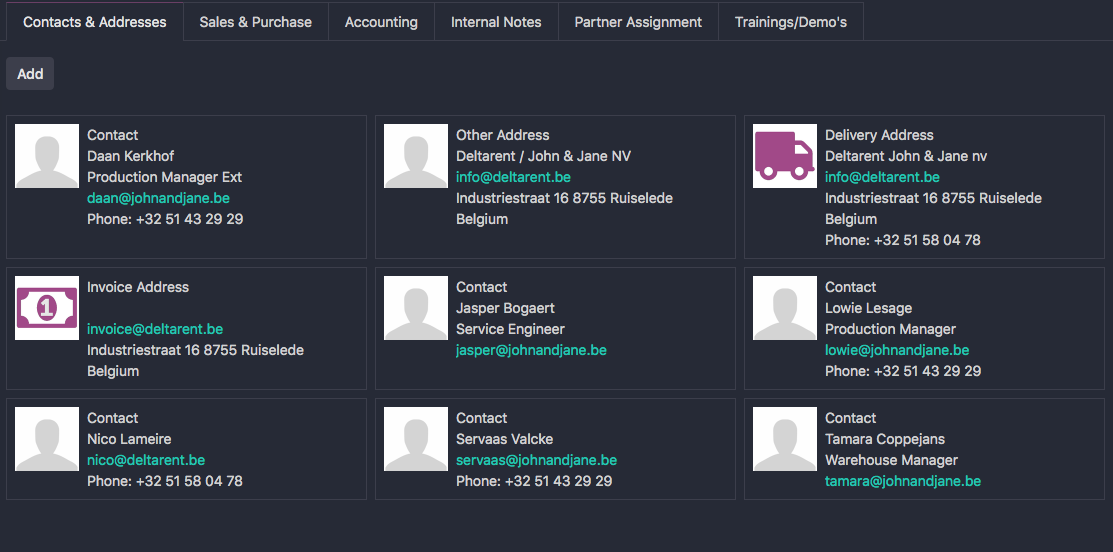
-A Company can have diferent types of subcontacts:
- Contact: This is a contact that can be used to make Quotations for, so you know who asked the quotation. (TIP: you can also set other Salespersons to diferent contacts)
- Delivery Address: This is the default address used to send the orders to
- Other Address: This can be a second address to send orders to, but you have to manualy assign the order to this adress.
- Invoice Address: This contact is used to send all proforma's and invoices to.
TIP 1 💡
HOW TO CHECK FOR OPEN DELIVERY'S:
Imagine: "A customers comes to the counter and asks: "I come to pick up my stuff". WHAT DO YOU DO ?
1. Search for the customer in the Contacts module
2. Push the button "DELIVERIES"
3. Check all his open Delivery's and go further with your day
Tutorial Video
TIP 2 💡
HOW TO SET UP A DEMO OR INTERESTS:
Imagine: "A customers comes to the counter and asks: "I want a demo". WHAT DO YOU DO ?
1. Search for the customer in the Contacts module
2. Push the tab Trainings/Demo's
3. Select the Demo Admission or a Training Interest