REPAIR Module
⚙️

REPAIR

Here you will find a step-by-step guide for the repair module at XLR.
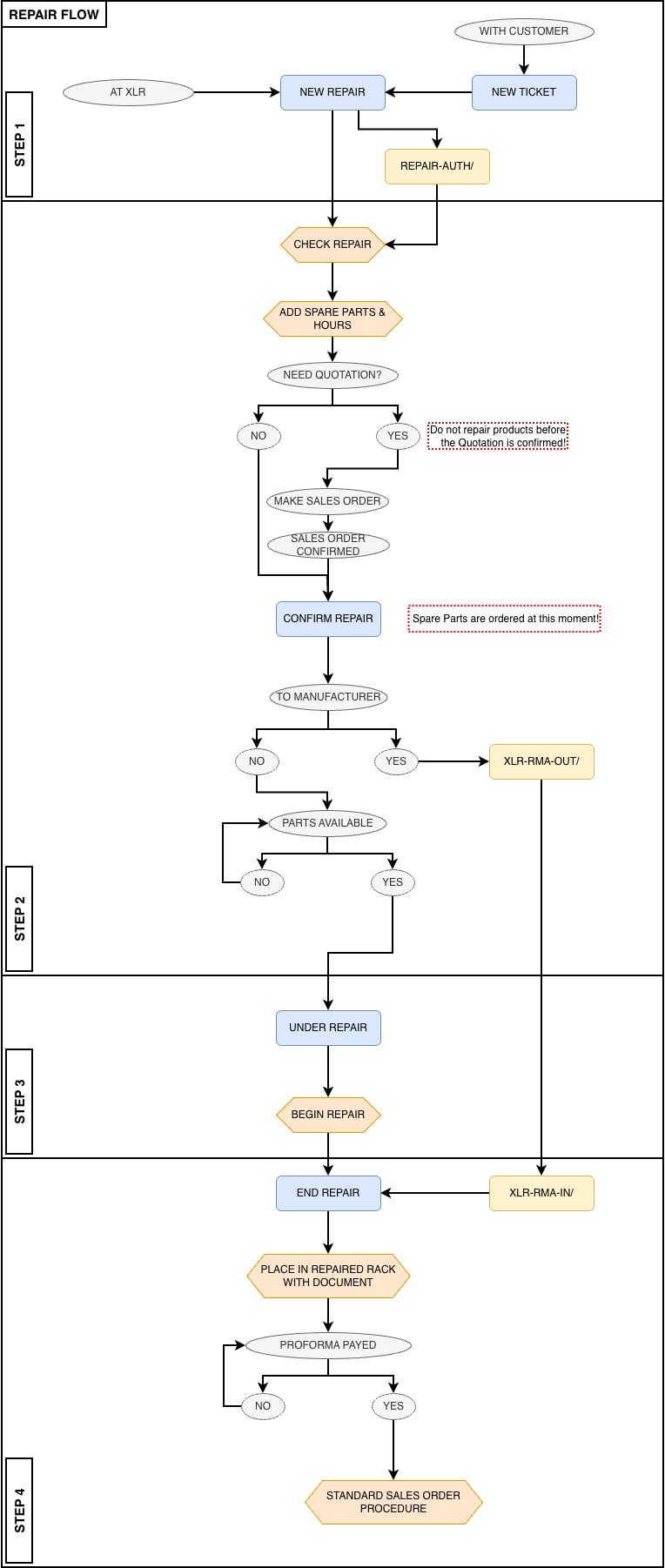


STEP 1: 
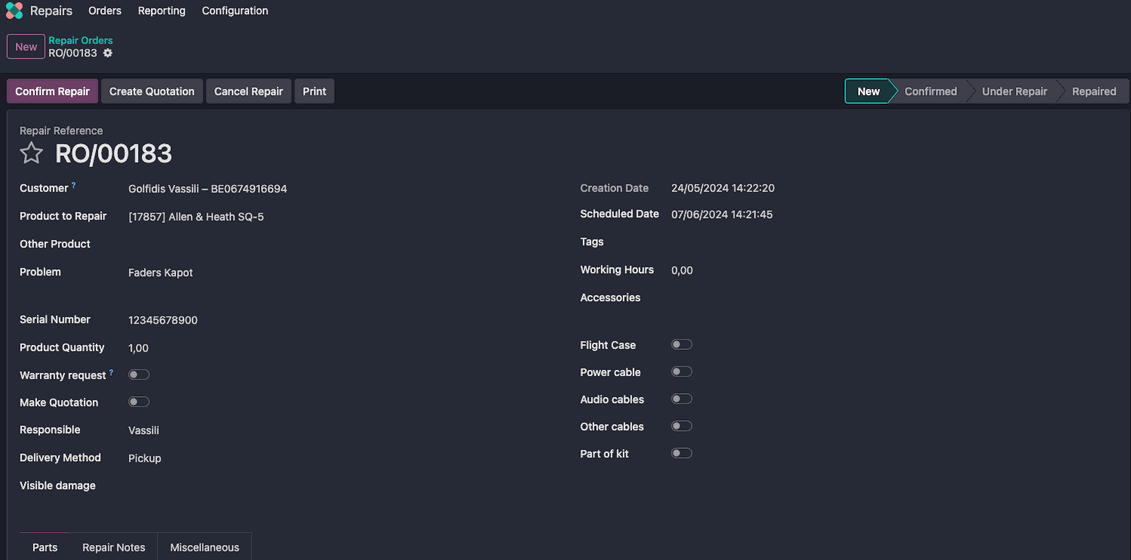
1. Create a new repair order (RO/xxxxx) by pressing the button NEW or from a ticket in the Helpdesk

2. Fill in all the information you can in this form

3. 🖨️ Print out the Repair document or Label


*If there is Repair Order is created with a Ticket, there will be a REPAIR-AUTHORISATION document to send to the customer, so that this can be attached with the incomming Repair.

-⭐: This is the Priority button, if this is set, the Repair Order will come on top of the priority list to repair.

-Warranty request: If the customer thinks it's under warranty, you should check this filed. This does not mean that it will be under warranty. This will be checked later on by the repair-team.

-Make Quotation: This field should be checked when the customer wants to know the price of the reparation before it's repaired.

-Visible damage: In this field you should write the visible damage you see, broken front pannel, wet or sticky screen,...

-Scheduled Date: This is always set on 2 weeks, you can change this to prioritise the Repair Order


STEP 2: 

Only for the Repair-Team

1. Take a look at the product and see what the problem is.

2. Introduce the Spare parts you need to repair the product.

3. Enter the estimated Working hours if the "Make Quotation" is checked

4. Create and send a quotation is the Quotation is requested.

5. Confirm the repair if you want to order the spare parts.


*If the repair has to go to a Manufacturer, fill in the fields, and a RMA OUT and RMA In will appear to send out the product to the Manufacturer.

-ATTENTION: in the Quotation you have to add the Working hours manualy.

-If the "Warranty request" is checked, please verify if it is correct or not.

-Do not repair the product before the Sales Order is Confirmed

-The Repair Order will automaticaly be confirmed when the Sales Order is confirmed

-When the RMA OUT is confirmed the Repair Order wil automaticaly go to Under Repair


STEP 3: 

Only for the Repair-Team

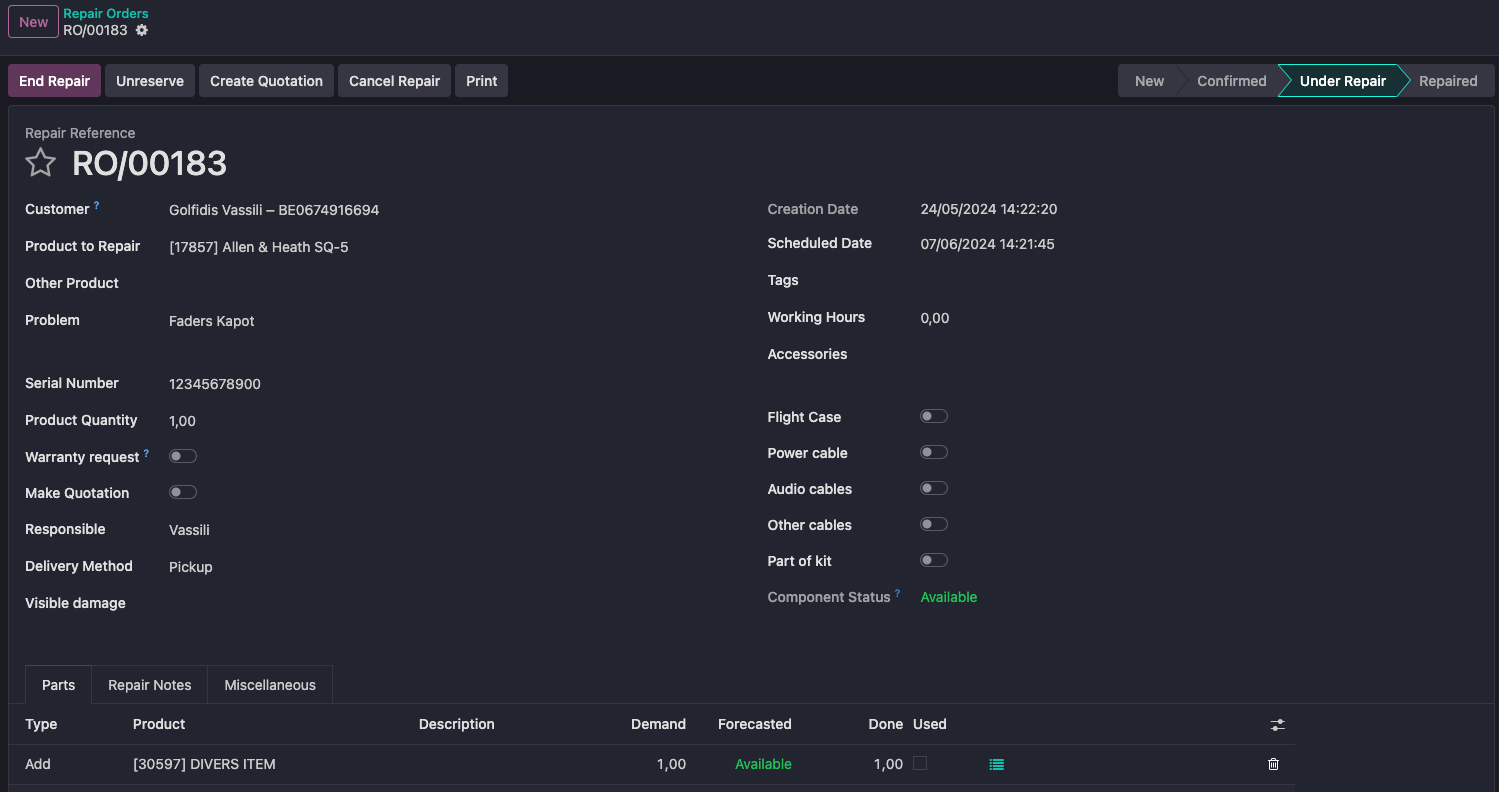
1. Press the Start Repair Button

2. Begin the reparation

-If the component status is "Not Available", DO NOT begin the reparation.

-If you have the spare part in stock, but the status is "Not Available", this means there is a problem with the stock. In this case, do not end the repair before checking it with the Administrators.


STEP 4: 

Only for the Repair-Team

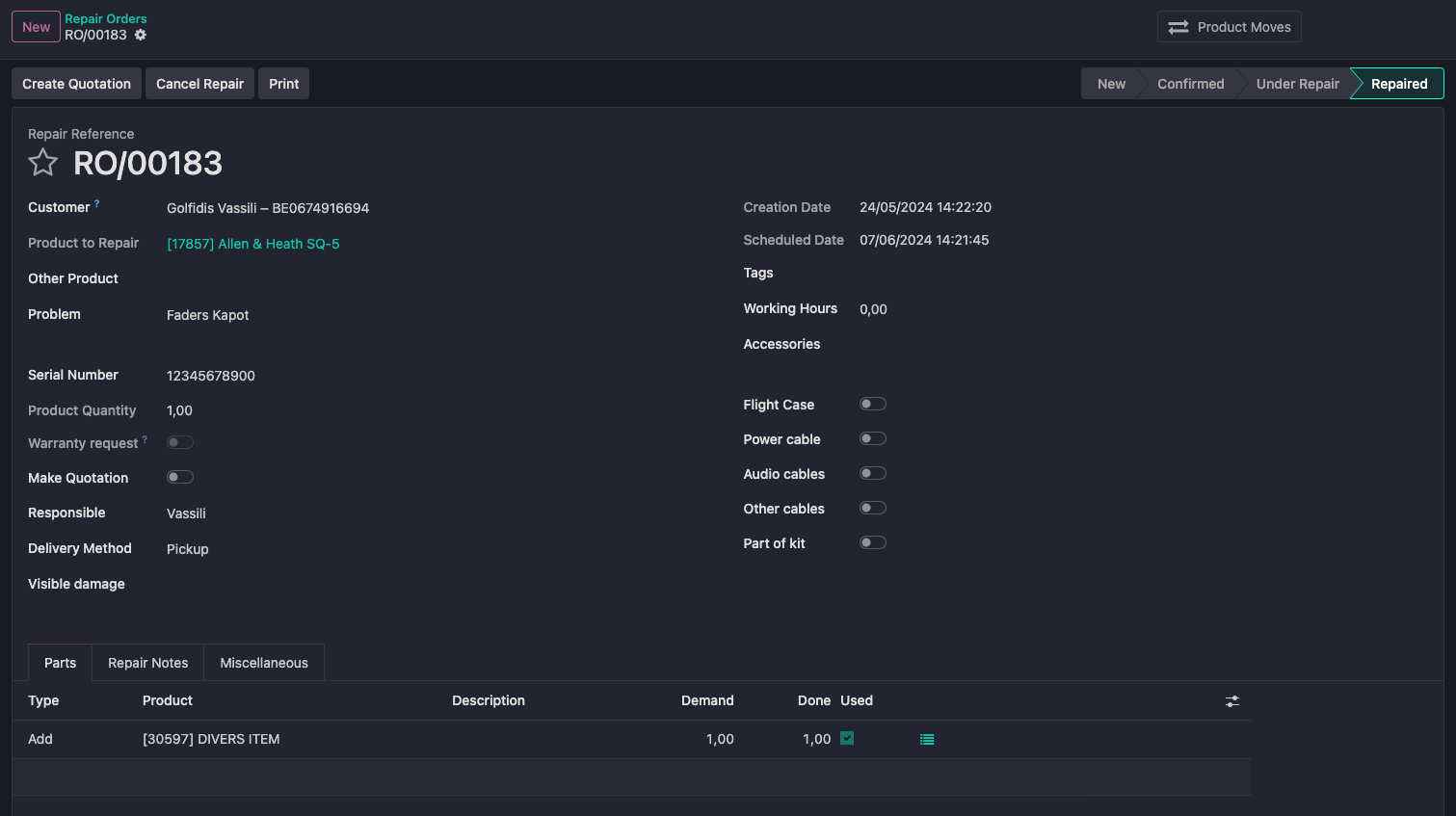
1. Press the End Repair button

2. Put the repaired product in the "Repaired" rack


*When the product comes back from the Manufacturer, check if everything is fine, and then End the Repair.

-Please note that when you end the repair you have to be shure that you are ready.

-Before ending the repair, check that the Done amount of the spare part is correct. If not, the spare part will not be took out of the stock, and also not be invoiced to the customer.